Signal Tab
Switch, don't scroll.
Summary
WHAT IT IS
Signal Tab lets one area of your page hold several pieces of content, with a row of tabs to switch between them. Only the selected one is visible, so a long page becomes short without anything being thrown away.
It works well anywhere you would otherwise scroll past information most visitors do not need: pricing plans side by side, a product's description, specification and shipping details, opening hours for several locations, questions and answers, before and after.
The content is not stored inside the tab bar. It stays where you built it on the page, as ordinary Blocs elements, and the tab bar simply shows and hides it. That means you can style, animate and edit your content exactly as you always do.
Requirements ⓘ Blocs version 5 or 6
One-time purchase – no subscriptions, no recurring costs.
Important: ⚠️
When purchasing, please enter your email address correctly, in case of a typo we can't send a confirmation. If the confirmation doesn't arrive, it's worth checking the spam folder as well.
HOW TO SET IT UP
1. Build your content first
Lay out each section the way you want it: a Bloc, a Column, a Card, an image, anything. Put them under each other, so on the canvas you can see them all at once.
2. Give each section an ID
Select the element and type a name into the ID field, for example basic, standard, pro. This name is what connects the tab to its content.
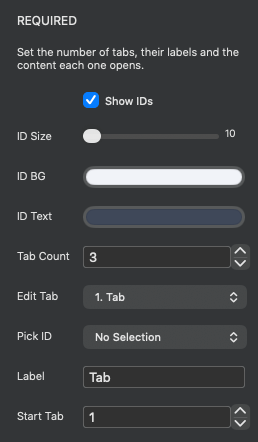
3. Drop in Signal Tab and set the number of tabs
Place the bric where you want the tabs to appear, then set Tab Count to how many sections you have.
4. Connect the tabs
Choose a tab in Edit Tab, type its Label, then pick the matching ID in Pick ID. Repeat for each tab. While Show IDs is on, the chosen ID appears under each tab and in the corner of the content it opens, so you can see at a glance what is paired with what. Switch it off when you are done — it never appears on the published page.
That is the whole setup. Everything else is styling.
A FEW THINGS WORTH KNOWING
You can rearrange freely. Because tabs and content are linked by name, not by position, you can move your Blocs around the page afterwards and nothing breaks.
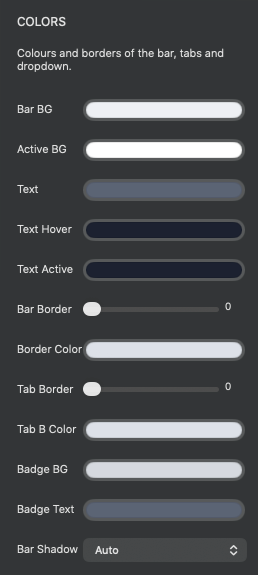
The editor shows the finished look. The tab bar on the canvas is drawn with the same styling as the live page, so what you set is what you get.
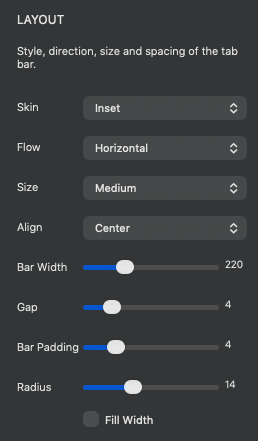
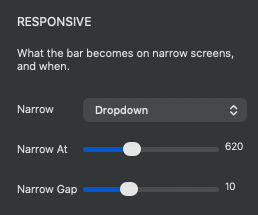
Narrow screens are handled for you. Below a width you choose, the bar can turn into a dropdown, stack the tabs under each other, or arrange them in two columns. Colours and styling stay identical — only the arrangement changes.
It works without a mouse. Arrow keys move between tabs, Home and End jump to the first and last, and the tab bar announces itself correctly to screen readers.
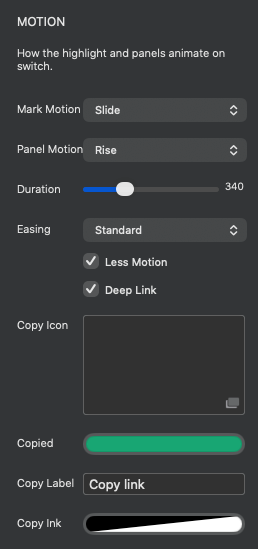
You can link straight to a tab. A link ending in the ID of a tab's content opens that tab when the page loads, so you can send someone to a specific one.